
Getting paid starts with sending a professional invoice. An invoice that looks clean, contains the right information, and arrives on time is more likely to get paid promptly than one that is missing details or looks like it was put together in a spreadsheet.
This guide walks through everything that needs to be on a professional invoice, how to create one using free software, and a few practical steps that reduce the time between sending and receiving payment.
What makes an invoice “professional”
A professional invoice is not about design flair. It is about completeness, clarity, and arriving on time. Clients and their accounts payable teams want to see specific information in a predictable format. When the right details are present and easy to find, approval and payment happen faster.
The opposite is also true. A missing tax number, an unclear due date, or the wrong billing address can put an invoice on hold for weeks while someone tracks down the details.
What every invoice must include
Different countries have slightly different legal requirements, but this list covers the essentials for most businesses:
Business and client details
- Your business name, address, and contact details
- Your tax registration number (VAT number, GST number, or equivalent)
- Client company name and billing address
- Client contact name if relevant
Invoice identification
- A unique invoice number (sequential, for your records and theirs)
- Invoice date (when it was issued)
- Due date (when payment is expected)
- Payment terms (e.g., Net 30, Net 15, Due on receipt)
Line items
- Description of each product or service
- Quantity and unit price
- Tax rate applied per line (if applicable)
- Line total
Totals
- Subtotal before tax
- Tax amount (GST, VAT, or other applicable tax)
- Total amount due
- Currency clearly stated
Payment instructions
- Bank account details or accepted payment methods
- Any early payment discounts or late payment fees
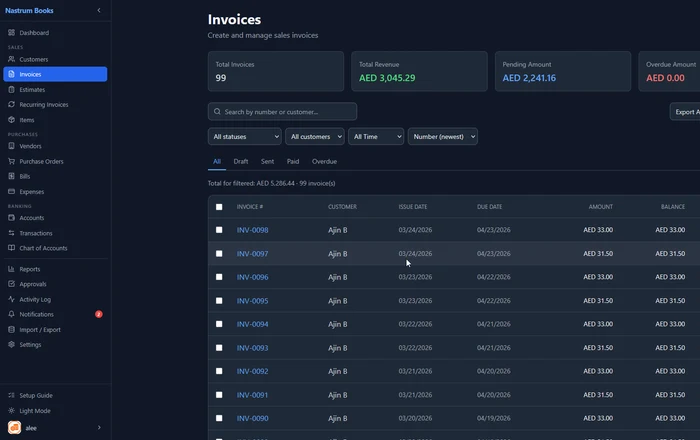
How to create a professional invoice using free software
Modern accounting software handles all of the above automatically. Once your company profile and tax settings are configured, creating an invoice takes about two minutes.
Here is the typical flow in Nastrum Books:
Step 1: Set up your company once
Go to Settings and enter your business name, address, logo, tax registration number, and invoice numbering preferences. Set your default payment terms and any footer text (like payment instructions or thank you notes). You do this once. Every invoice you create from that point inherits these details automatically.
Step 2: Add your client
Before creating an invoice, add the client to your Customers list. Enter their company name, billing address, email, and any specific payment terms for that client. If you bill them regularly, their details will always be pre-filled.
Step 3: Create the invoice
Click New Invoice. Select the customer. Add your line items: description, quantity, price, and tax rate per line. The software calculates totals automatically. Set the due date and add any notes.
Step 4: Review and send
Preview the invoice. When it looks right, send it directly from the software. The client receives a professional PDF by email. The invoice status in your list updates from Draft to Sent automatically.
Turn quotes into invoices in one click
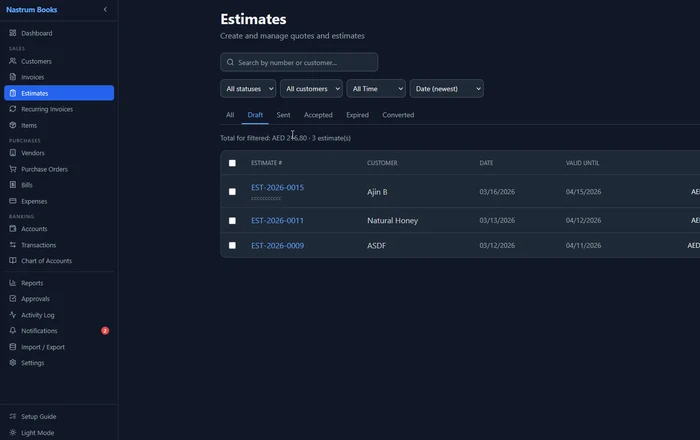
If you send quotes or proposals before starting work, estimates save time and prevent re-entry errors. Create an estimate the same way you would create an invoice. When the client accepts, click Convert to Invoice. The line items, amounts, and client details all carry over. All you need to add is the invoice date and due date.
This is also useful for projects that evolve. If scope changes after the estimate, you can update the invoice before sending rather than starting from scratch.
Nastrum Books is free forever for solo users. Send unlimited invoices, track payments, and get paid faster.
Start Free →Automate invoicing for repeat clients
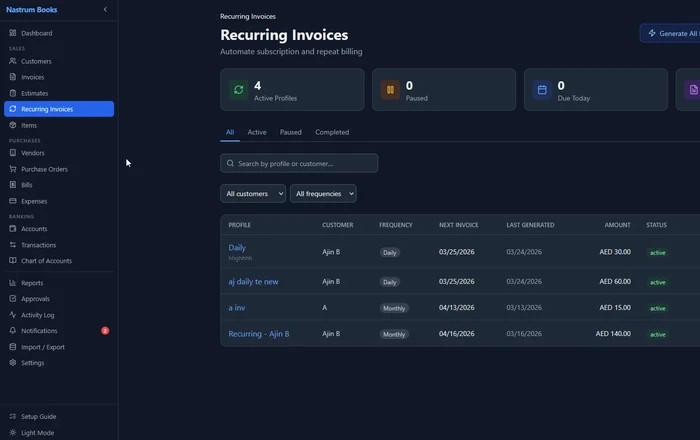
If you have monthly retainer clients or subscription-based work, recurring invoices eliminate the manual work of recreating invoices every cycle.
Set up a recurring schedule once: customer, line items, amount, frequency (weekly, monthly, quarterly), and the day it should be generated. The software handles the rest. Invoices go out on time, with the right numbering, and the status tracking works the same as any manually created invoice.
For businesses with multiple retainer clients, this alone can save hours every month.
Tips to get paid faster
Send invoices immediately. Do not batch invoices at the end of the month. Send them the day the work is done or the product ships. The sooner an invoice arrives, the sooner it can be processed.
Be specific with due dates. “Net 30” is clearer than “payable within 30 days,” but the clearest format is an actual date: “Payment due by 15 April 2026.” Some accounting teams process by date, not by terms language.
Follow up at the right time. Send a polite reminder three to five days before the due date, and another on the due date if payment has not arrived. Most late payments are not intentional. They are invoices that slipped through an approval queue.
Offer early payment discounts selectively. A 2% discount for payment within 10 days is worth it for clients who regularly pay late, but not as a blanket policy. Apply it where it makes a real difference to your cash flow.
Make payment easy. Include your bank details directly on the invoice. If you accept card payments, include the link. Every extra step in the payment process adds delay.
Common invoicing mistakes that delay payment
These are the most common reasons invoices get put on hold by client accounts payable teams.
- Wrong billing address — always confirm the billing contact and address before sending
- Missing purchase order number — many large companies require a PO number on every invoice
- Tax registration number missing — required for VAT and GST invoices to be valid for tax purposes
- Unclear line item descriptions — “Consulting services” is ambiguous; “Brand strategy workshop, 3 March 2026, 4 hours” is not
- No payment instructions — bank details or payment link must be included, not in a separate email
- Invoice sent to the wrong person — confirm whether to send to the project contact or directly to accounts payable
Frequently asked questions
Send your first professional invoice in under two minutes. Nastrum Books is free forever for solo users. Create your free account.